
Fix Python Version on macOS Using Pyenv
Thu Jan 08 2026
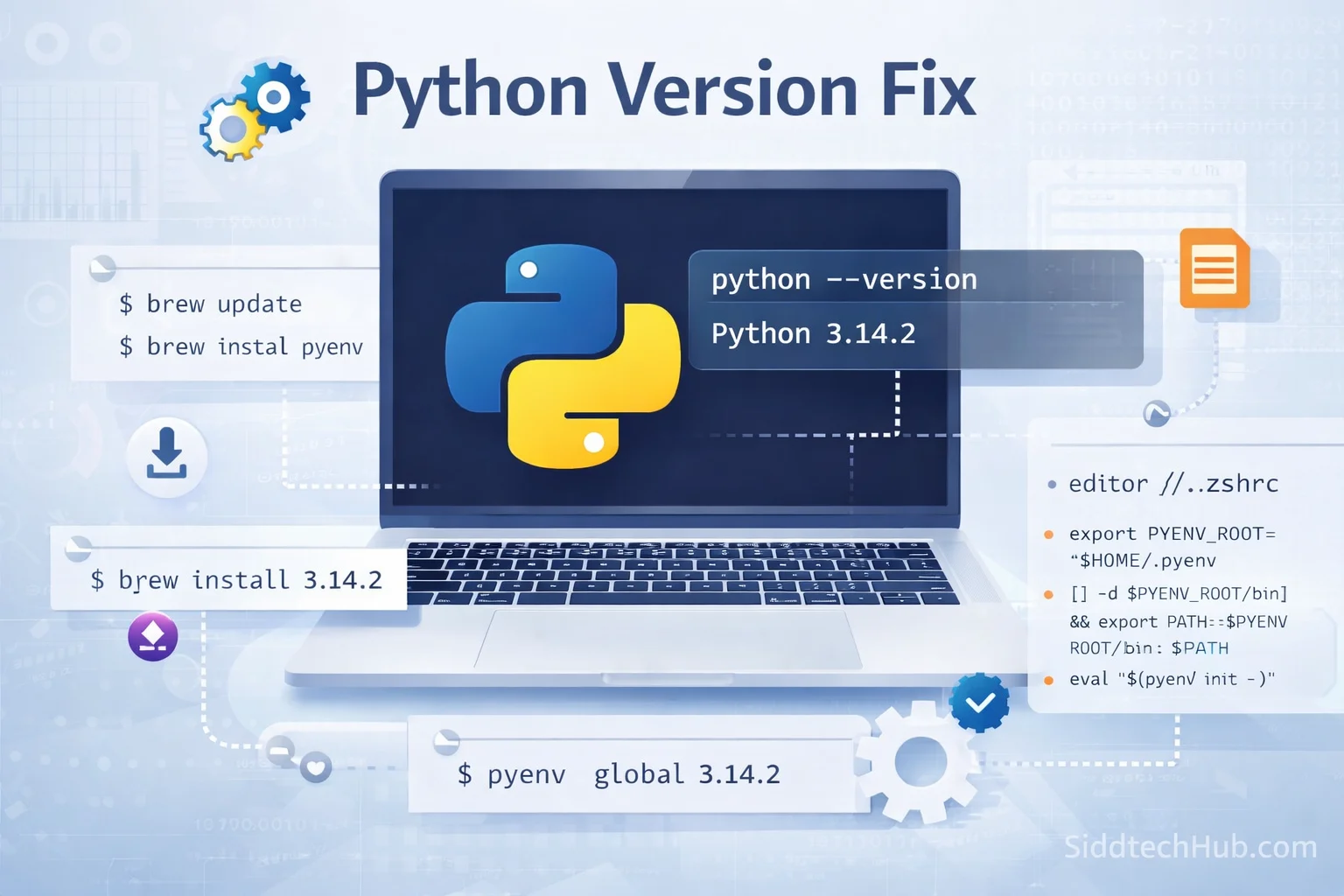
🐍 Fix Python Version
If you're working with Python regularly — especially across multiple projects — managing different versions can get messy. That’s where pyenv shines. It allows you to install and maintain multiple Python versions without conflicts.
In this guide, you’ll learn how to install pyenv, configure it to work with Zsh, and set your preferred global Python version.
✅ Why Use pyenv?
- Keeps multiple Python versions isolated
- Avoids conflicts between system Python and project Python
- Works perfectly with Zsh and virtual environments
- Ideal for developers working across varied projects
🔧 Step 1 — Install pyenv
First, make sure Homebrew is up to date and then install pyenv.
brew update
brew install pyenv
🛠 Step 2 — Configure Your Zsh Shell (.zshrc)
Open your Zsh configuration file:
nano ~/.zshrc
Add these lines at the end of the file:
export PYENV_ROOT="$HOME/.pyenv"
[[ -d $PYENV_ROOT/bin ]] && export PATH="$PYENV_ROOT/bin:$PATH"
eval "$(pyenv init -)"
Save and exit the editor:
Ctrl + O→ EnterCtrl + X
Reload the shell to apply changes:
source ~/.zshrc
⏬ Step 3 — Install the Latest Python Version
List available Python versions:
pyenv install --list
Install a stable version (example: Python 3.14.2):
pyenv install 3.14.2
🌍 Step 4 — Set the Global Python Version
Set your system-wide Python to the version you installed:
pyenv global 3.14.2
Verify the update:
python --version
# OR
python3 --version
Expected output:
Python 3.14.2
🎉 You’re Ready to Code!
You now have: ✔ pyenv installed ✔ Zsh configured ✔ A specific Python version set as global ✔ Ability to switch versions anytime
💡 Tip: For project-level control, use
pyenv local <version>